Sidebar Buddy Documentation
Everything you need to set up, organize, and personalize your folder sidebar. New here? Start with Getting started - most people are up and running in under a minute.
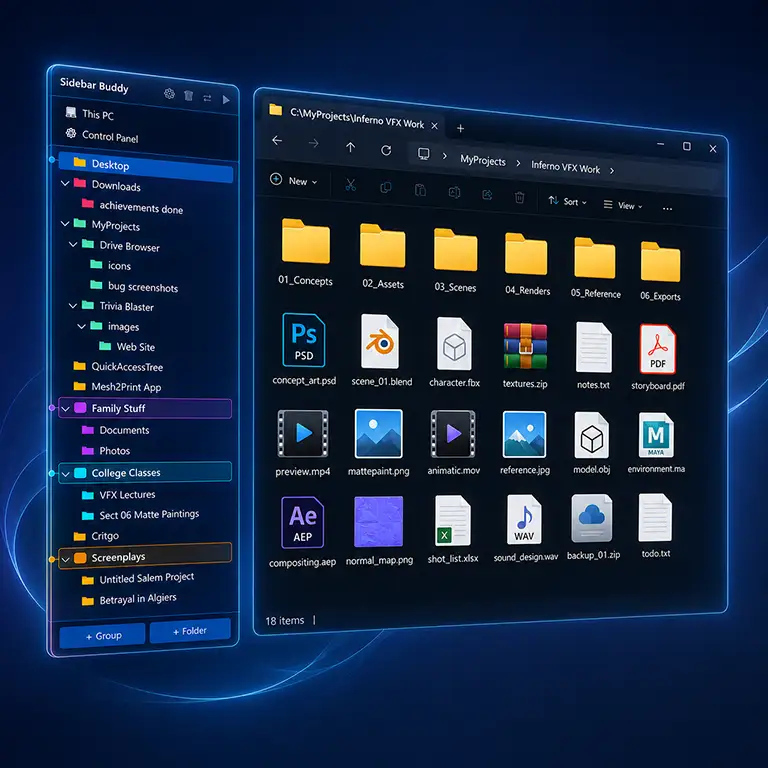
Getting started basics
Sidebar Buddy installs in seconds and needs no admin rights - it lives in your personal user folder and adds nothing system-wide.
- Download & run the installer from sidebarbuddy.com/download (or install from the Microsoft Store). Sidebar Buddy appears in your system tray.
- Open File Explorer. The sidebar snaps in alongside the window automatically.
- Organize. Add folders, drag to reorder, create groups, pick colors, and choose a skin. Everything saves as you go.
The sidebar & Explorer basics
The sidebar floats just outside the edge of your Explorer window and follows it as you move or resize it. Click any folder and Explorer navigates in place - no new windows, no extra tabs.
Dock left or right
By default the sidebar docks on the right. You can switch it to the left in Settings → Dock Side. Whichever side you choose, leave a little screen space on that edge so the panel has somewhere to appear.
Replace the built-in navigation pane
Sidebar Buddy was built to replace Explorer's default navigation pane. For the cleanest layout, hide the built-in one: in Explorer, View → Show → Navigation pane (Windows 11) or View → Navigation pane (Windows 10). You'll get more room for your files and just one tree to think about.
Adding & ordering folders organize
Sidebar Buddy is a shortcut manager - it stores only the path to each folder, never the folder's contents. Adding, removing, or reordering bookmarks never touches your actual files.
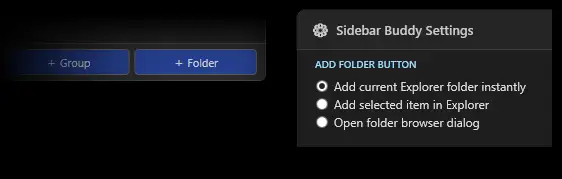
- Add a folder - the Add Folder button offers three modes: Add current Explorer folder instantly (adds the folder Explorer is currently viewing), Add selected item in Explorer (adds the item highlighted in Explorer), and Open folder browser dialog (pick any folder yourself).
- Reorder - drag any item up or down. Drop it onto a group to move it inside.
- Nest - drop one folder onto another to build a real hierarchy as deep as you like.
- Remove - removing a bookmark only deletes the shortcut, not the folder on disk.
Any folder Windows can see works as a bookmark: local drives, mapped network drives, USB, OneDrive, and Dropbox. If a drive is offline when you click it, Explorer handles it exactly as it normally would.
Groups organize
Groups are labeled containers - Work, Personal, Projects - that keep related bookmarks together. Create a group, give it a name, then drag folders inside. Collapse a group to tuck its contents away when you don't need them.
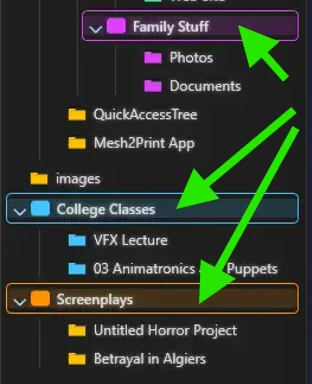
Color coding & cascade organize
Tag any folder or group with a custom color so you can find it by sight instead of by reading. Turn on cascade mode and every child folder automatically inherits its parent's hue - the entire tree stays color-organized with almost no effort.
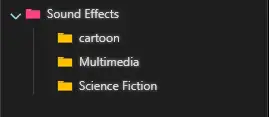
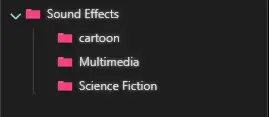
To color several folders at once, select them first (see Multi-select) and apply a color in one action. You can also reset a folder back to no color at any time.
Multi-select & bulk actions tip
Hold Ctrl and click to select multiple folders, then act on all of them at once instead of repeating yourself folder by folder:
- Change color - apply one color to every selected folder.
- Reset color - clear colors from the whole selection.
- Remove - delete several bookmarks in a single action.
Quick Links organize
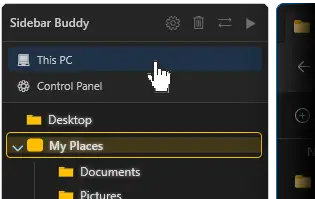
Quick Links are one-click shortcuts to This PC and Control Panel, docked to the top or bottom of the sidebar. Each Quick Link's hover color matches your active skin automatically, so they always look at home.
Skins & appearance customize
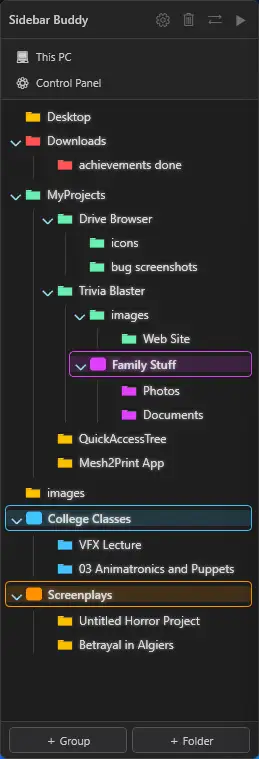
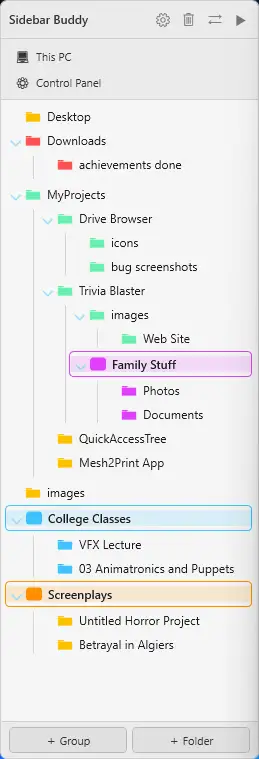
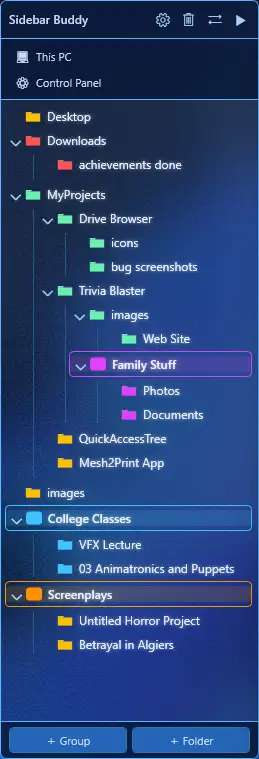
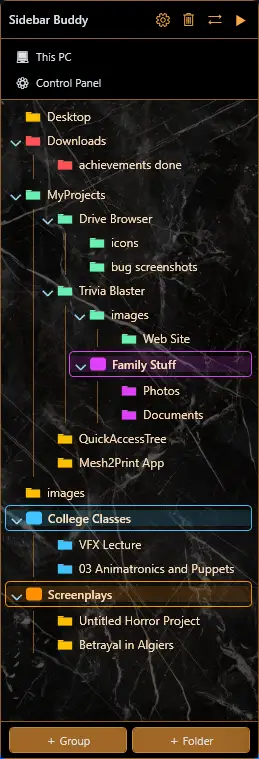
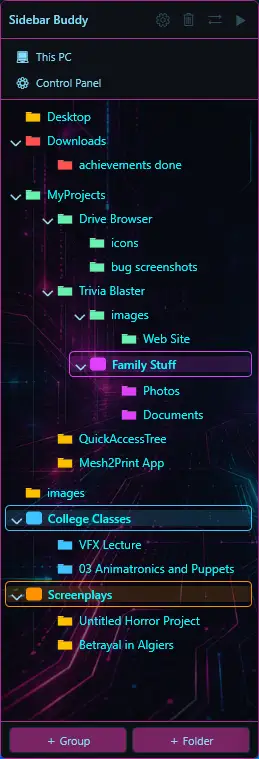
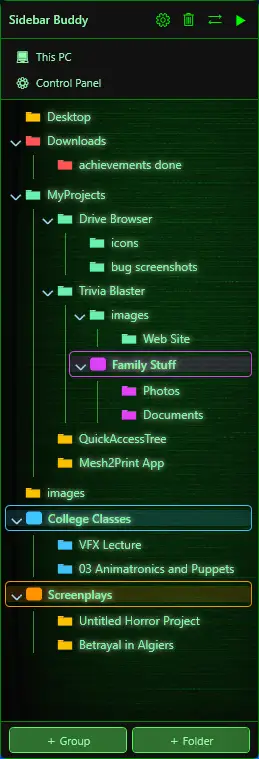
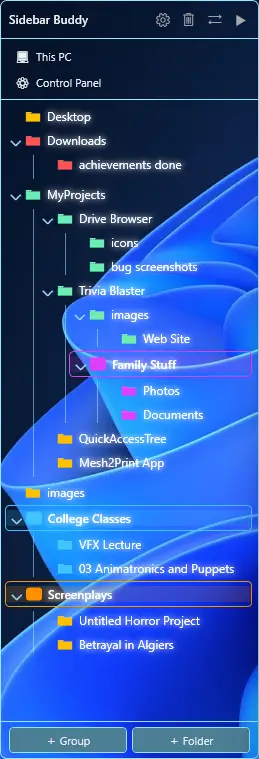
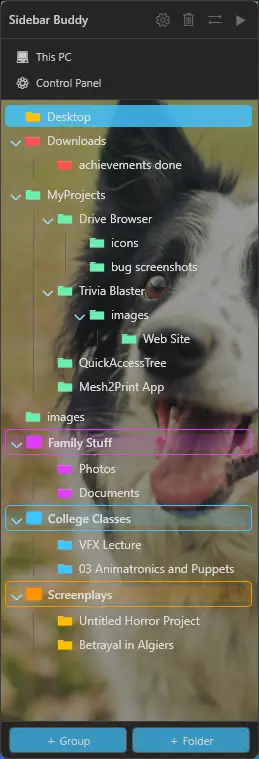
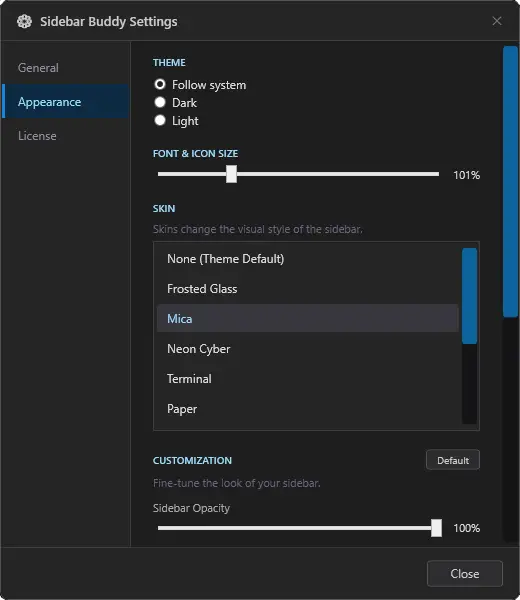
Twelve skins ship out of the box, each with hand-tuned textures, transparency, and glow presets. Pick one in Settings - the change is instant, with live preview. Each skin is a starting point rather than a fixed look: once you pick one, you can fine-tune it further (transparency, text glow, scale, and more), as covered below.
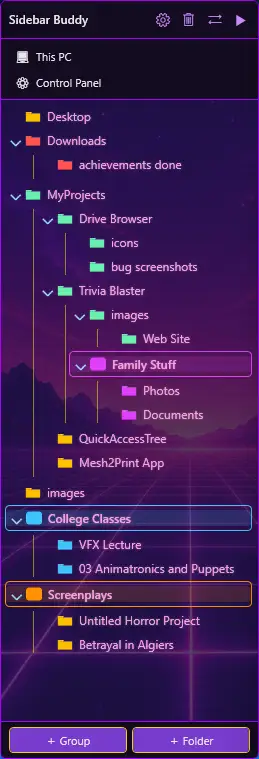
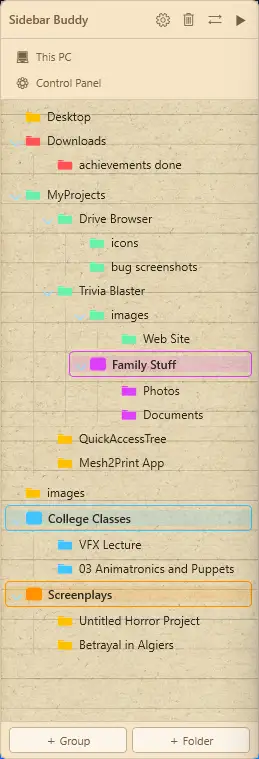
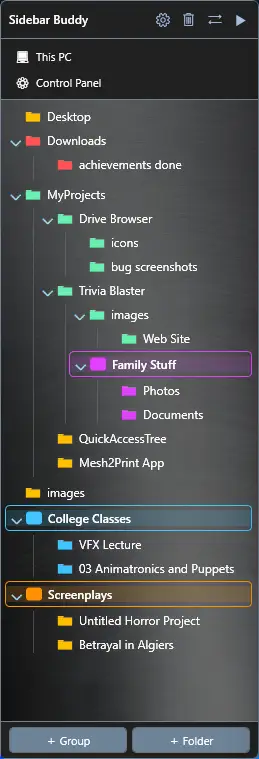
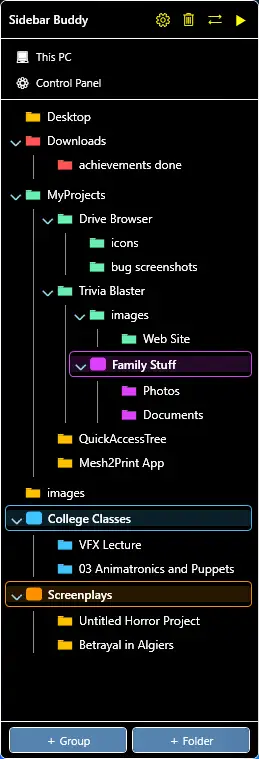
The Custom skin
The Custom skin lets you upload any image as your sidebar background, then dial in transparency, glow, and highlight color to taste.
Transparency, glow & scale
Three controls fine-tune the look, all with instant live preview - no restart, no OK button:
- Transparency - how much of your desktop shows through the sidebar.
- Text glow - the intensity of the glow behind folder names.
- Scale - a single slider scales the whole sidebar from 75% to 175%, great for high-DPI screens or larger, easier-to-read text.
Settings reference reference
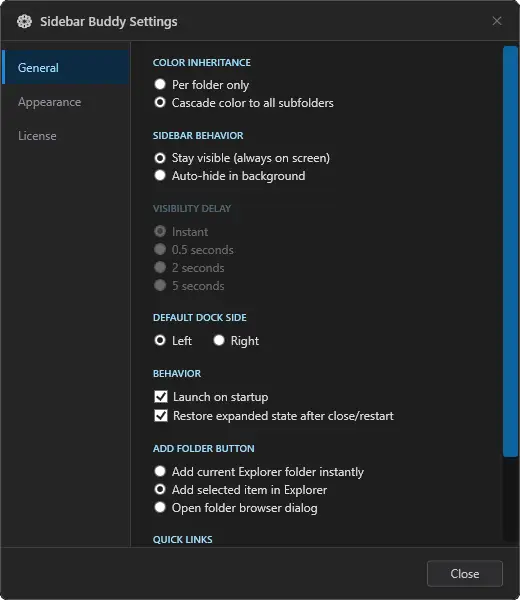
Open Settings from the tray icon. Here's what each option does:
| Setting | What it does |
|---|---|
| Dock Side | Whether the sidebar appears to the left or right of Explorer. Default: Right. |
| Auto-Hide | Keep the sidebar always visible, or let it slide away when Explorer loses focus. A 20 px peek tab snaps it back. |
| Launch on startup | Start Sidebar Buddy automatically when you sign in to Windows. |
| Skin | Choose one of the 12 skins, or the Custom image skin. |
| Transparency | Sidebar background opacity, with live preview. |
| Text glow | Glow intensity behind folder names. |
| Scale | Overall sidebar size, 75%-175%. |
| Cascade colors | Child folders inherit their parent's color automatically. |
| Quick Links | Show This PC / Control Panel shortcuts, docked top or bottom. |
Privacy & your data reference
Sidebar Buddy is built to be trustworthy by design:
- No telemetry, no analytics, no cloud sync. Nothing about how you use the app is ever transmitted.
- Your folder list never leaves your machine. It lives in a single JSON file in your user profile.
- Limited, non-personal internet use. No data about you is ever sent. The app connects to the internet only to verify your license (at activation, plus a quick background re-validation on launch for direct-download builds) and to check for a newer version on launch (it fetches the latest version number from GitHub). The Microsoft Store build updates through the Store instead.
- It never touches your files. Sidebar Buddy stores folder paths only - it never moves, renames, copies, or deletes anything on disk.
Licensing & activation licensing
Free trial
Every feature is unlocked for a 15-day free trial - no credit card, no account. When the trial ends, the app prompts you to activate before it launches. Your folder list and settings are preserved; nothing is deleted.
Activating your license
After purchase ($14.99, one-time) your license key is emailed to you. To activate, open Settings → License, enter the email and key from your confirmation, and you're set - it's yours forever, no account required.
Students
Students can request a free full license from a .edu email address at sidebarbuddy.com - same lifetime access as a paid license.
Troubleshooting fix
The app is in the tray but no sidebar appears
The sidebar snaps alongside Explorer, just outside its edge - not inside it. If Explorer is maximized, there's no space for the sidebar and it ends up off the edge of your display.
- Restore Explorer to a window: press Win + ↓ or click the restore button top-right.
- Check Settings → Dock Side. The default is Right, so make sure there's room on that side of the window.
Now I have two navigation panels
That's Explorer's built-in pane plus Sidebar Buddy. Hide the built-in one: View → Show → Navigation pane (Windows 11) or View → Navigation pane (Windows 10). Sidebar Buddy was made to replace it.
Found a bug?
First, make sure you're on the latest version: Settings → Account shows your version and checks for updates. Most issues are fixed within a release or two. Still stuck? Tell us - as a thank-you we'll send you a free license key plus a second key for a friend.
Still have a question? Contact support or browse the FAQ.